

Brain Test 5: Tricky Challenge Walkthrough
Read the clue. Try the unexpected. Solve each stage.
Independent fan-made guides. Not affiliated with the game developer.
Browse levels
No matching level. Choose a number from the index.
Recently updated
Game screenshots
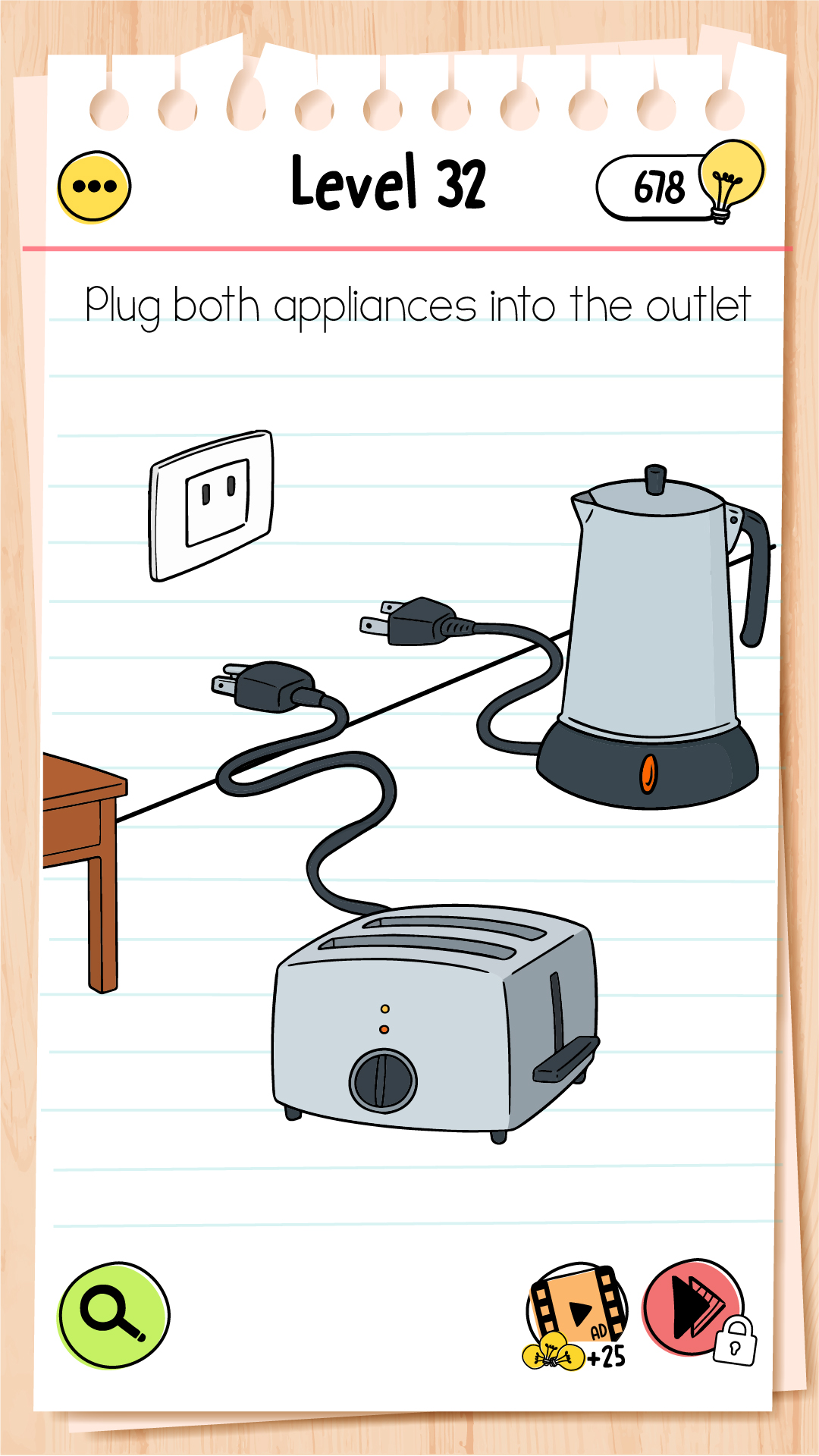
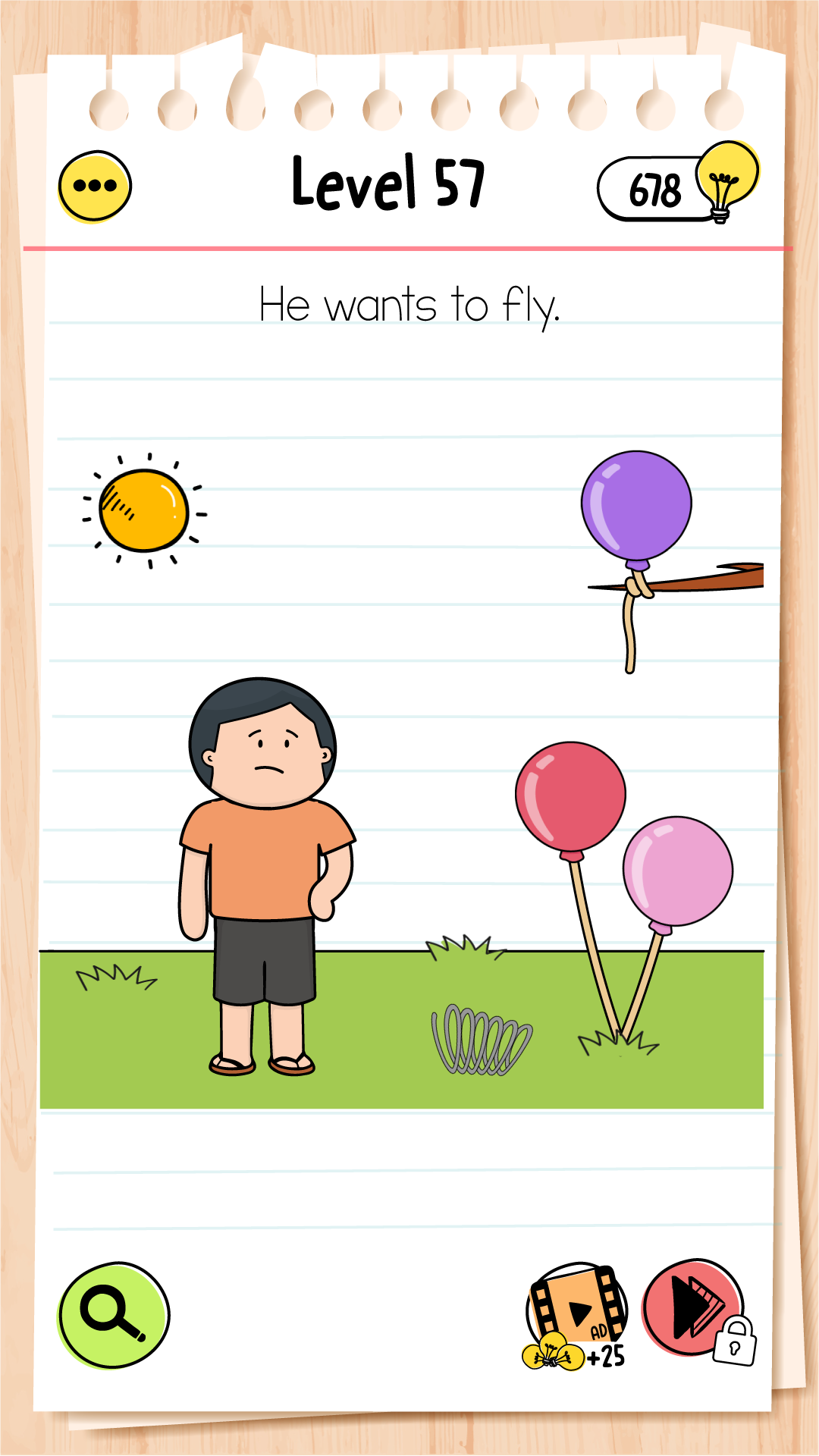
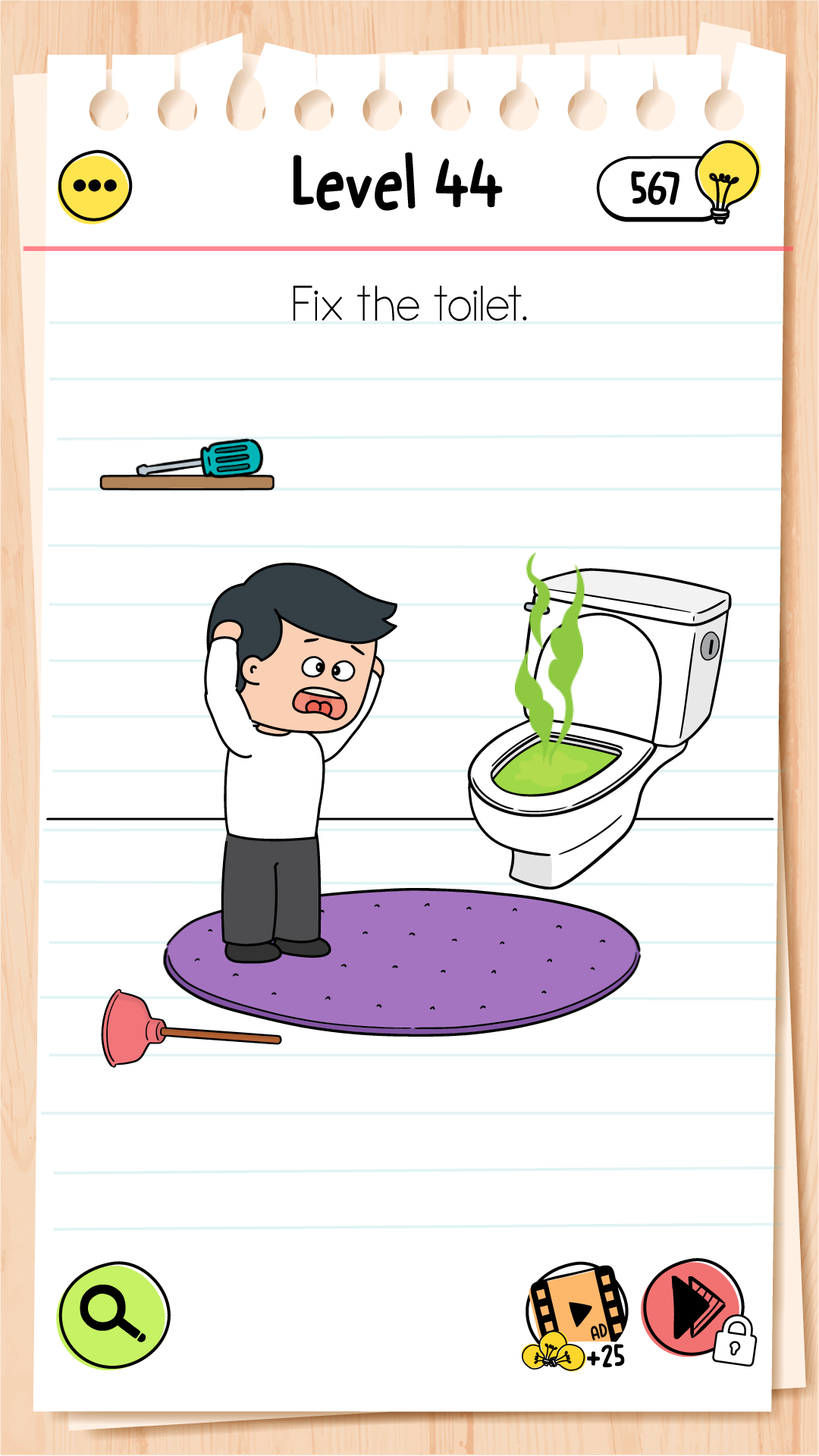
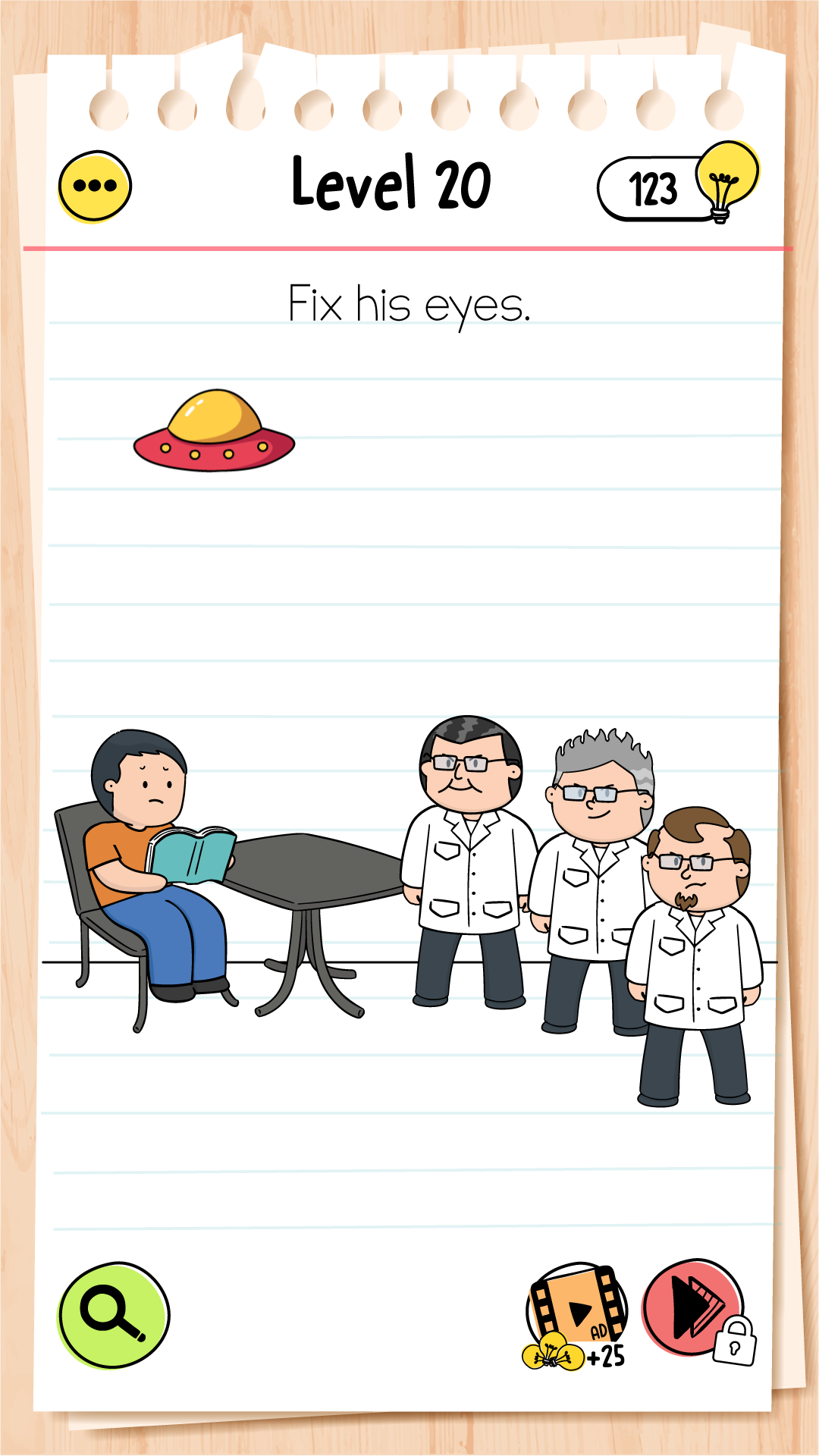
About the game
Brain Test 5: Tricky Challenge is Unico Studio’s multi-stage puzzle game, now listed on Google Play as Brain Test X: Hard Challenge. Choose a numbered walkthrough below and match your current scene before following its actions.
- Publisher
- Unico Studio
- Platform
- Android, iOS
- Guide coverage
- 135 levels
- Last updated
- Game store
- Google Play

Find the numbered video, match its current scene, and follow the next action. Brain Test 5 turns familiar cartoon situations into multi-stage riddles where the wording can matter as much as the picture.
Brain Test 5 and its new store name
Brain Test 5: Tricky Challenge is a puzzle game from Unico Studio. The same Android app is now listed as Brain Test X: Hard Challenge, with the package identifier com.unicostudio.braintest5. Older walkthroughs often retain the Brain Test 5 title. This guide keeps that familiar name so you can find the recordings you need.
The game uses illustrated scenes, unusual solutions and several stages within a level. It is different from Brain Test All-Star: IQ Boost, another Unico Studio title that has sometimes been called Brain Test 5 in older uploads. Before following a guide, match the scene and prompt as well as the number. That small check can save a great deal of confusion.
Start with the task, then inspect the scene
Read the instruction above the puzzle before touching an object. Identify what would count as success: finding something, changing a situation, helping a character or completing a visual pattern. Next, look across the whole scene. The largest or brightest object may attract attention without being the useful first target.
Try one action and observe its response. A tap can select a target; a drag can test whether an item moves or combines with another object. When a scene changes, read again. The next stage may ask for a new kind of interaction, so the action that solved the previous stage is not automatically the answer to the next one.
Use the guide without watching more than you need
Enter a number in the level finder or choose a range from the directory. The featured links give quick access to Level 5 and Level 13. On a level page, press play to open the video. Compilation recordings start at the chapter for that number, and the creator’s link remains available below the player.
Compare your current stage with the recording, then watch only until the next useful move. Pause, try that action in the game, and check the result. If you have already completed an early stage, move forward within the chapter until the picture matches. Do not restart a whole level merely because the video opens at its first scene.
Look for the assumption that is blocking you
A tricky puzzle often encourages an obvious interpretation and then asks for something less expected. Read the wording carefully, including a request that sounds unusually specific. Inspect the picture edges, empty spaces and objects that seem decorative. Consider whether the task asks you to change the scene rather than simply pick an answer.
Avoid turning experimentation into random tapping. Make one small test with a clear purpose, watch the result and change your idea if nothing happens. When a drag fails, check the starting point and destination before deciding that the whole idea is wrong. A short recording can help you notice the exact target or preparation you missed.
Several scenes can belong to one level
The store highlights multi-stage levels. Completing a scene may reveal another task while the main level number stays the same. Watch the transition and read the new instruction rather than expecting every success animation to finish the level. This is especially useful when a walkthrough seems longer than the puzzle you initially saw.
Treat each stage as a new observation problem. Keep track of the current objects and what the task now asks you to do. If you lose your place in a compilation, compare the scene rather than guessing from elapsed time alone. The chapter link gets you to the numbered level; the visual match gets you to the stage that matters.
Hints, offline play and other app features
The store describes offline puzzle play and labels the app as containing advertisements and in-app purchases. Its description also mentions ad-free options. Read the actual hint, reward or purchase prompt before accepting it, and check the app settings for the choices available in your version. Streaming a guide still requires a connection.
Brain Quest event information and Google Play Games achievements appear in the store. Their current conditions belong to the app’s own screens. An achievement does not by itself establish how saved progress transfers. Before clearing data, reinstalling or changing devices, check the recovery instructions and preserve the details you would need to contact developer support.
Keep puzzle problems separate from loading problems
If the scene responds but your action does not solve it, compare the goal, stage and gesture with the matching video. If the whole app stops responding, allow the animation to finish and try a normal restart. Check for updates and available storage before attempting changes that could remove local data.
If the guide’s player will not load, use the credited YouTube link and check your connection or browser extensions. This website cannot grant game rewards, remove app advertisements or restore an account. Use the contact page for a mismatched guide and the developer’s store support route for an app or purchase problem.
Frequently asked questions
Is Brain Test 5 the same game as Brain Test X?
The Google Play listing for com.unicostudio.braintest5 now uses Brain Test X: Hard Challenge, while its description still refers to Brain Test 5. Older recordings may use Tricky Challenge in the title. Compare the puzzle, its instruction and the current stage before copying an action; another Brain Test game can have a completely different puzzle under the same number.
How do I solve a level with several stages?
Complete the current scene and wait for the next instruction before making another move. A numbered level can contain more than one puzzle, so the first success animation may only advance a stage. In the video, keep watching until the next numbered level appears. When returning to the game, check that you are copying the same stage rather than the beginning of the recording.
Where are the answers for level 5?
Open the Level 5 guide from the featured links or enter 5 in the level finder. Its video begins at the chapter labelled Level 5. Compare the opening scene with your game, then pause after the first useful action. If you are already on a later stage, continue within that chapter until the matching scene appears.
Where is the walkthrough for level 13?
Use the Level 13 entry in the featured links or enter 13 in the finder. The player opens the corresponding chapter, rather than starting the whole compilation from the beginning. Follow one interaction at a time and check the new instruction after each scene change. The number alone is less useful than matching the characters, objects and stage shown on screen.
Why does the video show a different puzzle?
First check the app name and publisher: this guide covers the Unico Studio app with the braintest5 package identifier. Brain Test All-Star is a separate game, even though some older video titles call it Brain Test 5. Updates can also alter the scene order. Compare the task and current stage, and send the guide URL and your app version through the contact page if they differ.
Should I tap, drag or draw?
Let the task and visible objects guide the choice. A tap selects a target, while a deliberate drag tests whether an object can move or combine with something else. When the puzzle presents a drawing task, inspect the required shape before tracing it. Do one experiment at a time and watch the response, so you can tell which action actually changed the scene.
Why does my drag not work?
Touch the object itself, move slowly toward the destination and release within the target area. Compare the moment immediately before the gesture with the video: a previous action may have changed the scene. Repeating a fast swipe over several objects makes it harder to identify the problem. If the scene still does not respond, check your app version and restart the game normally before considering more disruptive troubleshooting.
Do I need to use a hint?
Try reading the wording literally, inspecting the picture edges and testing one plausible interaction first. If you remain stuck, watch only the next action in the walkthrough and return to the puzzle. Any in-game hint or reward offer should explain its own cost or conditions. Read that prompt before accepting it; this website cannot grant hints or change your in-game balance.